Showing posts with label JSON. Show all posts

Friday, July 10, 2020

Purse dynamic JSON with C#

First, let me explain what is we are trying to do in this post. Recently have a problem needed to parse a JSON to a C# object. Few of the fields are fixed whereas few are dynamic in nature. Like in the following JSON-
 
{
  "text": "TestallDay",
  "description": null,
  "recurrenceRule": null,
  "id": 238,
  "recurrenceException": null,
  "allDay": true,
  "startDate": "2020-07-07T05:00:00Z",
  "endDate": "2020-07-08T05:00:00Z",
  "resourceTypeId_52": [
    134
  ],
  "resourceTypeId_49": [
    118,
    124
  ]
}
There can be multiple such properties with resourceTypeId_* where * is a number and these properties contain an array of integers. Here is how we can solve this in one possible way. Declared a class like below-
 
    public class DataModel
    {
        [JsonProperty("text")]
        public string Text { get; set; }

        [JsonProperty("description")]
        public object Description { get; set; }

        [JsonProperty("recurrenceRule")]
        public object RecurrenceRule { get; set; }
        
        [JsonProperty("Id")]
        public int Id { get; set; }
        
        [JsonProperty("recurrenceException")]
        public object RecurrenceException { get; set; }
        
        [JsonProperty("allDay")]
        public bool AllDay { get; set; }
        
        [JsonProperty("startDate")]
        public DateTime StartDate { get; set; }
        
        [JsonProperty("endDate")]
        public DateTime EndDate { get; set; }
       
        [JsonProperty("ResourceTypeIds")]
        public Dictionary<string, int[]> ResourceTypeIds { get; set; }
    }
Here in the class you can see we have a property of type Dictionary where we need to fill in all such properties. We can use normal JSON conversion (in my case used JsonConvert from Newtonsoft) for other properties and we can use Newtonsoft.Json.Linq.JProperty to loop through all such properties - resourceTypeId_34, resourceTypeId_45 etc and fill in the values in integer dictionary. Here is the code-
 
            string json = "{\"text\":\"TestallDay\",\"description\":null,\"recurrenceRule\":null,\"id\":238,\"recurrenceException\":null,\"allDay\":true,\"startDate\":\"2020-07-07T05:00:00Z\",\"endDate\":\"2020-07-08T05:00:00Z\",\"resourceTypeId_52\":[134],\"resourceTypeId_49\":[118,124]}";
            
            var data = JsonConvert.DeserializeObject<DataModel>(json);
            data.ResourceTypeIds = new Dictionary<string, int[]>();
            JObject item = JObject.Parse(json);

            IEnumerable<JProperty> props = item.Properties().Where(p => p.Name.Contains("resourceTypeId"));
            foreach (var prop in props)
            {
                List<int> arrayItems = new List<int>();
                foreach (var arrItem in prop.Value)
                {
                    arrayItems.Add((int)arrItem);
                }
                data.ResourceTypeIds.Add(prop.Name, arrayItems.ToArray());
            }

The output looks like this screenshot-

 
IEnumerable<JProperty> props = item.Properties().Where(p => p.Name.Contains("resourceTypeId"));
            foreach (var (prop, arrayItems) in from prop in props
                                               let arrayItems = (from arrItem in prop.Value
                                                                 select (int)arrItem).ToList()
                                               select (prop, arrayItems))
            {
                data.ResourceTypeIds.Add(prop.Name, arrayItems.ToArray());
            }
Complete source code can be found here

Thursday, May 24, 2012

Show/hide detail in a table using jQuery and MVC 3

This is another simple example where we will be showing some record in a table and there will be some plus/ minus image in each row and on click of the image we will be showing some detail of the record. And we will toggle the images and data. To do that lets have the following view models-
namespace MVCRazor.ViewModel
{
    public class TableRowItemViewlModel
    {
        public int Id { get; set; }
        public string Name { get; set; }
        public string Email { get; set; }
        public TableRowItemDetailViewlModel Detail { get; set; }
    }
    public class TableRowItemDetailViewlModel
    {
        public string Address { get; set; }
        public string Sex { get; set; }
        public string Nationality { get; set; }
    }
}
The model is simple and self explanatory. And we are going to use the following view to display the tabular data and the controller to read the data. In the sample we have taken some in memory object for data access-
namespace MVCRazor.Controllers
{
    public class TableRowDetailController : Controller
    {
        List<TableRowItemViewlModel> data = new List<TableRowItemViewlModel>();
        public TableRowDetailController()
        {
            data.AddRange(new List<TableRowItemViewlModel>(){
            new TableRowItemViewlModel(){ Id =1,Name="Name 1", Email ="Email 1", Detail=new TableRowItemDetailViewlModel(){Address="Address 1", Nationality="Nationality 1", Sex="Sex 1"}},
            new TableRowItemViewlModel(){ Id =2,Name="Name 2", Email ="Email 2", Detail=new TableRowItemDetailViewlModel(){Address="Address 2", Nationality="Nationality 2", Sex="Sex 2"}},
            new TableRowItemViewlModel(){ Id =3,Name="Name 3", Email ="Email 3", Detail=new TableRowItemDetailViewlModel(){Address="Address 3", Nationality="Nationality 3", Sex="Sex 3"}},
            new TableRowItemViewlModel(){ Id =4,Name="Name 4", Email ="Email 4", Detail=new TableRowItemDetailViewlModel(){Address="Address 4", Nationality="Nationality 4", Sex="Sex 4"}},
            new TableRowItemViewlModel(){ Id =5,Name="Name 5", Email ="Email 5", Detail=new TableRowItemDetailViewlModel(){Address="Address 5", Nationality="Nationality 5", Sex="Sex 5"}},
            new TableRowItemViewlModel(){ Id =6,Name="Name 6", Email ="Email 6", Detail=new TableRowItemDetailViewlModel(){Address="Address 6", Nationality="Nationality 6", Sex="Sex 6"}},
            new TableRowItemViewlModel(){ Id =7,Name="Name 7", Email ="Email 7", Detail=new TableRowItemDetailViewlModel(){Address="Address 7", Nationality="Nationality 7", Sex="Sex 7"}},
            new TableRowItemViewlModel(){ Id =8,Name="Name 8", Email ="Email 8", Detail=new TableRowItemDetailViewlModel(){Address="Address 8", Nationality="Nationality 8", Sex="Sex 8"}},
            new TableRowItemViewlModel(){ Id =9,Name="Name 9", Email ="Email 9", Detail=new TableRowItemDetailViewlModel(){Address="Address 9", Nationality="Nationality 9", Sex="Sex 9"}},
        });
        }

        public ActionResult Index()
        {
            return View((from c in data
                         select new TableRowItemViewlModel() { Id = c.Id, Name = c.Name, Email = c.Email }).ToList());
        }
    }
}
@model List<MVCRazor.ViewModel.TableRowItemViewlModel>
@{
    ViewBag.Title = "Index";
    Layout = "~/Views/Shared/_Layout.cshtml";
}
<h2>Index</h2>
<style>
.tbl {border:1px solid gray; }
.tbl td{padding:5px 10px 5px 10px; }
.tbl th{padding:5px 10px 5px 10px;background-color:Gray;color:White }
.pm{ cursor:pointer;}
.plus
{
    background:url('http://www.quimicasuiza.com/images/extras/plus-minus.gif') 0 -16px;
    display:block;
    width:16px;
    height:16px;
}
.minus
{
    background:url('http://www.quimicasuiza.com/images/extras/plus-minus.gif') 0 0;
    display:block;
    width:16px;
    height:16px;
}
.detail
{
    background-color:#d4d0d8;    
    padding:7px;
}
</style>
<table class="tbl" cellpadding="0" cellspacing="0">
<tr><th>&nbsp;</th><th>Id</th><th>Name</th><th>Email</th></tr>
@foreach (var row in Model)
{ 
    <tr><td><span class="pm plus"></span></td><td>@row.Id</td><td>@row.Name</td><td>@row.Email</td></tr>
}
</table>
The above controller and the view will display the data like below-
We are going to use the following script to retrieve data from the controller and show hide the details.
<script type="text/javascript">
    var colCount;
    $(document).ready(function () {
        colCount = $(".tbl tr:first").children().length;
        $("tr:odd").css("background-color", "#f0f3f4");
        $(".pm").click(function () {
            if ($(this).hasClass("plus")) {
                $(this).removeClass("plus").addClass("minus");
                if (!$(this).closest("tr").next().hasClass("detail")) {
                    getDetail($(this).closest("tr"));
                }
                else
                    $(this).closest("tr").next().show();
            }
            else {
                if ($(this).closest("tr").next().hasClass("detail"))
                    $(this).closest("tr").next().hide();
                $(this).removeClass("minus").addClass("plus");
            }
        });
    });
    function getDetail(row) {
        var rowNew = $("<tr class='detail'><td colspan=" + colCount + "></td></tr>");
        $.ajax({
            type: "get",
            timeout: 30000,
            data: "id=" + row.find("td:eq(1)").html(),
            url: '@Url.Action("GetDetail")',
            dataType: "json",
            contentType: "application/json; charset=utf-8",
            success: function (result) {
                rowNew.find("td").append("<b>Address </b>: " + result.Address);
                rowNew.find("td").append("<br /><b>Sex </b>: " + result.Sex);
                rowNew.find("td").append("<br /><b>Nationality </b>: " + result.Nationality);
                row.after(rowNew);
            },
            error: function (a, b, c) {
                debugger;
            }
        });
    }
</script>
In this we are showing plus/minus button as span with CSS class pm. On click of the span we are checking whether it has a class named plus . Based on that in line 8 and 18 we are toggling the classes plus/minus.

If the line has class called plus, in the line 9 we are checking whether the next row of the container row has a CSS class called detail. Suppose it has that class then we are simply showing that row(in line 13). Otherwise we are calling a function called getDetail in line 10 by passing the current row. In that function we are building a row in memory with same columnspan as of the table row. Then we are passing the id of row and doing a ajax call to the controller to get the data. In the success of the ajax call we are adding the newly created row next to the current row(in line 37).

On click of span, if the condition check in the line 7 does not have a class named plus, that means the detail is already loaded and open. We are simply hiding the detail in line(16-17).

The controller method for getting detail is as follows-
        public JsonResult GetDetail(int id)
        {
            return Json((from c in data
                         where c.Id == id
                         select c.Detail).First(), JsonRequestBehavior.AllowGet);
        }
In the image we can see things in action. If we click the button multiple time, the ajax call will happen one time only. And on subsequent click it just show and hide the data.

Thursday, March 22, 2012

Full calendar - saving event using ajax / pagemethod/ webmethod in asp.net

In this post we will be saving the event in a full calendar plugin using jQuery ajax and asp.net pagemethod or web service. To go through the post I request you to first check the following post. We are going the proceed forward with the same post and its source code.

http://growingtech.blogspot.in/2012/02/full-calendar-with-json-data-source.html

In addition to the previous script and CSS file references, we have added one more script file for this purpose-
<script src="https://github.com/douglascrockford/JSON-js/raw/master/json2.js" type="text/javascript"></script>
This file is used hare to to JSON stringify the event object.

Now how we are going to solve this issue is that on click of a day, we are going popup an entry form for the event and we will use ajax to save the event to the server and after successful saving we will be adding the event to the calender. Now calender plugin has some event to solve this purpose-
  1. dayClick - this event happen during the mouse click of a day.
  2. renderEvent - using this event we can add an event to the calender. We can set stick to true to permanently add the event to the calender.
For popup we are going to use jQuery dialog. For adding the event we can add the following HTML-
<div id="eventToAdd" style="display: none; font-size: 12px;">
    Event name:
    <input id="eventName" type="text" /><br />
    Event start date:
    <input id="eventStartDate" type="text" />(MM-dd-yyyy)<br />
    Event end date:
    <input id="eventEndDate" type="text" />(MM-dd-yyyy)<br />
</div>
Now we need to show popup dialog for adding event on the day click of the calendar day. To do so we will take the help of the dayClick event of the calender and it goes here-
<script type="text/javascript">
    $('div[id*=fullcal]').fullCalendar({
        dayClick: function (dateSelected, allDay, jsEvent, view) {
            $("#eventToAdd").dialog(
            {
                title: "Add event",
                modal: true,
                buttons: {
                    "Add": function () {
                       //event adding logic goes here                 
                    }
                }
            });
        }
    });
</script>
Now on click of add button in the dialog we need to do two things. First save the event data using jQuery ajax and page method / web service. And secondly on the success of the ajax call add the event on the calender. Both the work is done here-
"Add": function () {
    var event = new Object(), eventToSave = new Object(); ;
    eventToSave.EventID = event.id = Math.floor(200 * Math.random());
    event.start = new Date($("#eventToAdd #eventStartDate").val());
    eventToSave.StartDate = $("#eventToAdd #eventStartDate").val();
    if ($("#eventToAdd #eventEndDate").val() == "") {
        event.end = event.start;
        eventToSave.EndDate = eventToSave.StartDate;
    }
    else {
        event.end = new Date($("#eventToAdd #eventEndDate").val());
        eventToSave.EndDate = $("#eventToAdd #eventEndDate").val();
    }
    eventToSave.EventName = event.title = $("#eventToAdd #eventName").val();

    $("#eventToAdd input").val("");
    $.ajax({
        type: "POST",
        contentType: "application/json",
        data: "{eventdata:" + JSON.stringify(eventToSave) + "}",
        url: "FullcalenderwithPagemethod.aspx/AddEvents",
        dataType: "json",
        success: function (data) {
            $('div[id*=fullcal]').fullCalendar('renderEvent', event, true);
            $("#eventToAdd").dialog("close");
        },
        error: function (XMLHttpRequest, textStatus, errorThrown) {
            debugger;
        }
    });
}
What we are doing here is in line 2 we are creating two JavaScript objects event and eventToSave and line 3-14 we are assigning the values from the popup. And finally we are saving the data to server using ajax call. Why we have taken two objects here is event data of the calender has different property name and the server event have different name. Once the saving of event is successful we are adding the event object to the calendar using line number 24. The page method using for this is as follows-
[System.Web.Services.WebMethod]
public static bool AddEvents(Event eventdata)
{
    List events;
    if (HttpContext.Current.Session["events"] != null)
        events = (List)HttpContext.Current.Session["events"];
    else
        events = new List();
    events.Add(eventdata);
    HttpContext.Current.Session["events"] = events;
    return true;
}
For this example we have used in memory event object. We can easily replace it with proper database driven. The complete modified code for this is available here for download.

Wednesday, February 29, 2012

Posting an array or generic list of string to asp.net MVC 3 using jQuery ajax

This is a simple post that we will be using to post an array of value type or a generic list of value. We will be using string[] and List for our example. Lets have a vary basic controller action method that will be used for this purpose
        [HttpPost]
        public JsonResult Binding_posting_to_Array_or_List(string[] data)
        {
            return Json("success");
        }
Or
        [HttpPost]
        public JsonResult Binding_posting_to_Array_or_List(List data)
        {
            return Json("success");
        }
Now lets have a sample jQuery code to call the controller method as below-
 <script type="text/javascript">
    $(document).ready(function () {
        $("#btn").click(function () {
            $.ajax({
                url: '@Url.Action("Binding_posting_to_Array_or_List")',
                type: 'POST',
                data: { data: ["value 1", "value 2", "value 3"] },
                dataType: "json",
                success: function (response) {
                    alert(response);
                },
                error: function (xhr) {
                    debugger;
                    alert(xhr);

                }
            });
        });
    });
</script>
<input type="button" id="btn" value="Save data" />
But if we check the posted value at runtime in controller, we will find null value got posted-


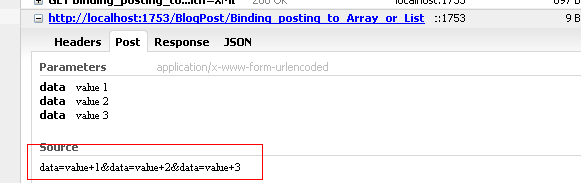
The reason is MVC expects the data in querystring pattern. And we are passing data as a JSON object. The code will work if we pass data as querystring-
data: 'data=value 1&data=value 2&data=value 3',
Now jQuery ajax has a built in feature to solve this problem. That is the use of traditional option in the ajax call. If we pass the data as JSON object and set the option traditional:true,, jQuery will internally convert input data in querystring format. jQuery ajax method does this by using jQuery.param() API method. So, the final working sample of ajax call is as below-
 <script type="text/javascript">
     $(document).ready(function () {
        $("#btn").click(function () {
            $.ajax({
                url: '@Url.Action("Binding_posting_to_Array_or_List")',
                type: 'POST',
                traditional:true,
                data: {data:["value 1", "value 2", "value 3"]},
                dataType: "json",
                success: function (response) {
                    alert(response);
                },
                error: function (xhr) {
                    debugger;
                    alert(xhr);

                }
            });
        });
    }); 
</script>
Following image shows how the value gets converted to querystring format after using traditional option in the ajax call. This image is taken during run time using Firefox.


Wednesday, February 1, 2012

Full Calendar with JSON data source using asp.net web service/ pagemethod/ webmethod

In this blog post we are going to discuss using full calendar plugin with JSON data source through asp.net webservice / pagemethod / webmethod. We can get the detail of the plugin here.

For using this plugin we need to add the reference of the following files-
    <script src="http://ajax.googleapis.com/ajax/libs/jquery/1.4.4/jquery.min.js" type="text/javascript"></script>
    <script src="http://ajax.googleapis.com/ajax/libs/jqueryui/1.8.6/jquery-ui.min.js" type="text/javascript"></script>
    <link rel='stylesheet' type='text/css' href='http://arshaw.com/js/fullcalendar-1.5.2/fullcalendar/fullcalendar.css' />
    <script type='text/javascript' src='http://arshaw.com/js/fullcalendar-1.5.2/jquery/jquery-ui-1.8.11.custom.min.js'></script>
    <script type='text/javascript' src='http://arshaw.com/js/fullcalendar-1.5.2/fullcalendar/fullcalendar.min.js'></script>
Basic style HTML infrastructure using for this implementation is as follows-
        #loading
        {
            width: 600px;
            height: 550px;
            position: absolute;
            background-color: gray;
            color: white;
            text-align: center;
            vertical-align: middle;
            display: table-cell;
        }
        #fullcal
        {
            width: 600px;
            height: 600px;
            position: absolute;
            display: none;
        }
    <div>
        <div id="loading">
            <label style="top: 50%; position: relative">
                loading events....</label>
        </div>
        <div id="fullcal">
        </div>
    </div>
In the div with id fullcal we will be loading the calendar control. By default this div is marked as hidden, and a place holder div (with id loading) is added in the place. This is just to show while server data is getting loaded from server. Once the data is loaded on the calendar we will show back the calendar and hide the placeholder.

The script used for activating calendar is as follows-
    $('div[id*=fullcal]').fullCalendar({
        header: {
            left: 'prev,next today',
            center: 'title',
            right: 'month,agendaWeek,agendaDay'
        },
        editable: true,
        events: list of event here
    });
Now in full calendar the event object has lots of information. We can get more information about the event object here. Lets represent the event as a C# class as follows-
public class Event
{
    public int EventID { get; set; }
    public string EventName { get; set; }
    public string StartDate { get; set; }
    public string EndDate { get; set; }
}
There are many other properties for the event object. For the sack of implementation we are taking these only. And I think the class properties are self explanatory. We can get the data for the event from database. For this post we are creating in memory object for data source. The page method used for data retrieval is as follows-
   [WebMethod]
    public List GetEvents()
    {
        List events = new List();
        events.Add(new Event()
        {
            EventID = 1,
            EventName = "EventName 1",
            StartDate = DateTime.Now.ToString("MM-dd-yyyy"),
            EndDate = DateTime.Now.AddDays(2).ToString("MM-dd-yyyy")
        });
        events.Add(new Event()
        {
            EventID = 2,
            EventName = "EventName 2",
            StartDate = DateTime.Now.AddDays(4).ToString("MM-dd-yyyy"),
            EndDate = DateTime.Now.AddDays(5).ToString("MM-dd-yyyy")
        });
        events.Add(new Event()
        {
            EventID = 3,
            EventName = "EventName 3",
            StartDate = DateTime.Now.AddDays(10).ToString("MM-dd-yyyy"),
            EndDate = DateTime.Now.AddDays(11).ToString("MM-dd-yyyy")
        });
        events.Add(new Event()
        {
            EventID = 4,
            EventName = "EventName 4",
            StartDate = DateTime.Now.AddDays(22).ToString("MM-dd-yyyy"),
            EndDate = DateTime.Now.AddDays(25).ToString("MM-dd-yyyy")
        });
        return events;
    }
Now we can read the web service data using jQuery and fill the full calendar using server driven event list like following-
    $.ajax({
        type: "POST",
        contentType: "application/json",
        data: "{}",
        url: "FullcalenderwithWebservice.asmx/GetEvents",
        dataType: "json",
        success: function(data) {
            $('div[id*=fullcal]').fullCalendar({
                header: {
                    left: 'prev,next today',
                    center: 'title',
                    right: 'month,agendaWeek,agendaDay'
                },
                editable: true,
                events: data.d
     });
            $("div[id=loading]").hide();
            $("div[id=fullcal]").show();
        },
        error: function(XMLHttpRequest, textStatus, errorThrown) {
            debugger;
        }
    });
Now here is a slight problem, the calendar will get loaded but not the list of events returned. Few points we need to remember here-
  1.  The full calendar event object has certain naming like EventID should be id, EventName – title, StartDate – start, EndDate – end and so on. So, we have to map the returned object to full calendar’s desired object.
  2. One more thing that we need to remember is that the start and end need to be in date type. The proper conversation is as follows-
    $('div[id*=fullcal]').fullCalendar({
        header: {
            left: 'prev,next today',
            center: 'title',
            right: 'month,agendaWeek,agendaDay'
        },
        editable: true,
        events: $.map(data.d, function(item, i) {
                    var event = new Object();
                    event.id = item.EventID;
                    event.start = new Date(item.StartDate);
                    event.end = new Date(item.EndDate);
                    event.title = item.EventName;
                    return event;
                })
    });
We can note one more thing that we are returning the date in MM-dd-yyyy format (DateTime.Now.ToString("MM-dd-yyyy")). The reason is that we can pass such a string to Date constructor in JavaScript to create the date.

We can download the full source code from here.

Wednesday, December 1, 2010

JSON to HTML table

There was a need to converting JSON object to HTML Table. I found out different solutions over internet. But there was no generic solution where I can pass a JSON string and get the HTML table in return. So, I tried out a solution with JavaScript. The code is as follows-

<!DOCTYPE html PUBLIC "-//W3C//DTD XHTML 1.0 Transitional//EN" "http://www.w3.org/TR/xhtml1/DTD/xhtml1-transitional.dtd">
<html xmlns="http://www.w3.org/1999/xhtml">
<head>
<title>Untitled Page</title>
</head>
<body>
<form id="form1" runat="form1">
<div id="test">
</div>
<script type="text/javascript">
var table = "[{'Country':'mycity','Name':'abc','Age':'29','Email':'test@mail.com'}," +
"{'Name':'abcd','Age':'39','Email':'test1@mail.com'}," +
"{'Name':'abcde','Age':'30','Email':'test2@mail.com'}," +
"{'Age':'30','Sex':'male','Name':'abcde'}]";
table = eval('' + table + '');
var tableObject = function (json) {
var headerCount = new Object();
var createTR = function (id) {
var tr = document.createElement("tr");
tr.ID = id;
return tr;
};
var createTH = function (html) {
var th = document.createElement("th");
th.innerHTML = html;
return th;
};
var createTD = function (html) {
var td = document.createElement("td");
td.innerHTML = html;
return td;
};
var getName = function (id) {
for (var name in headerCount) {
if (eval("headerCount." + name) == id) {
return name;
}
}
};
var pTable;
if (json.length > 0) {
var index = 0;
pTable = document.createElement("table");
var head = createTR();
for (var i = 0; i < json.length; i++)
for (var item in json[i]) {
if (!headerCount.hasOwnProperty(item)) {
head.appendChild(createTH(item));
eval('headerCount.' + item + "=" + index);
index++;
}
}
pTable.appendChild(head);
for (var i = 0; i < json.length; i++) {
var row = new createTR(i);
for (var j = 0; j < index; j++) {
var name = getName(j);
if (eval("json[" + i + "].hasOwnProperty('" + name + "')")) {
row.appendChild(createTD(eval('json[' + i + '].' + name)));
}
else
row.appendChild(createTD(''));
}
pTable.appendChild(row);
}
}
return pTable;

};
var c = new tableObject(table);
document.getElementById("test").appendChild(c);
</script>
</form>
</body>
</html>